

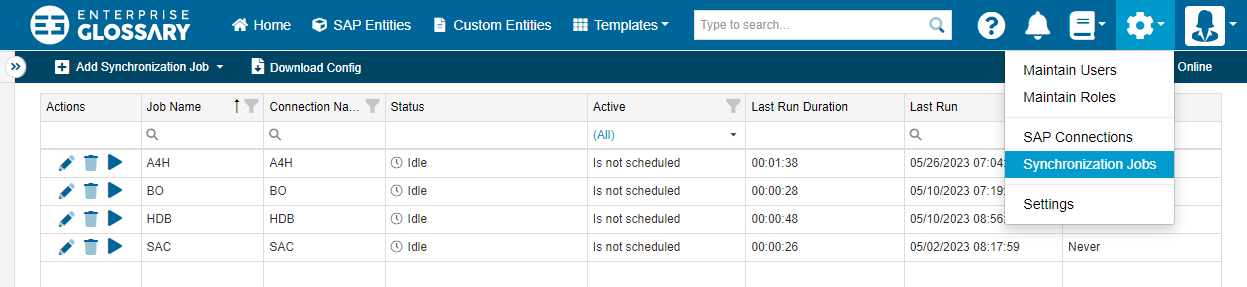
Synchronization Jobs use the created SAP Connections to make the supported object types available as Entities. Synchronization Jobs can be accessed by clicking Synchronization Jobs.
Create and Edit Synchronization Jobs
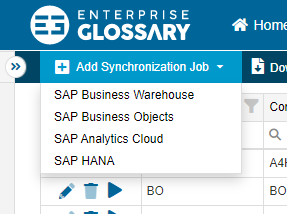
To create a Synchronization Job, press the Add Synchronization Job button and select the desired system type from the dropdown.
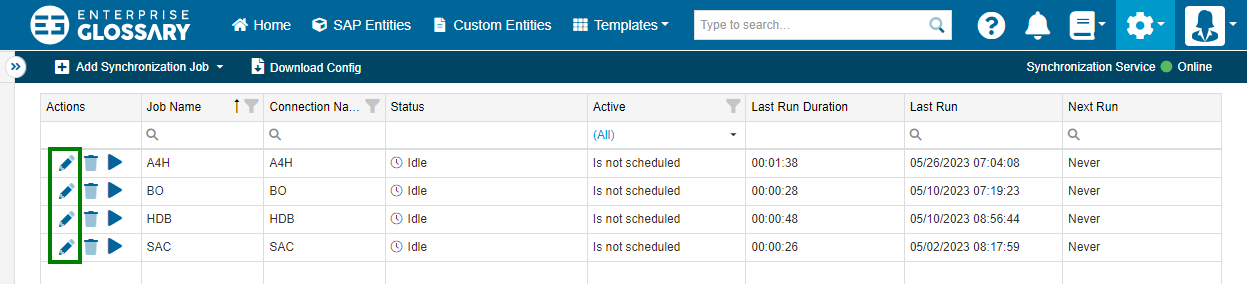
To edit a job, press the Edit button in the Actions table column.
SAP BW
Properties
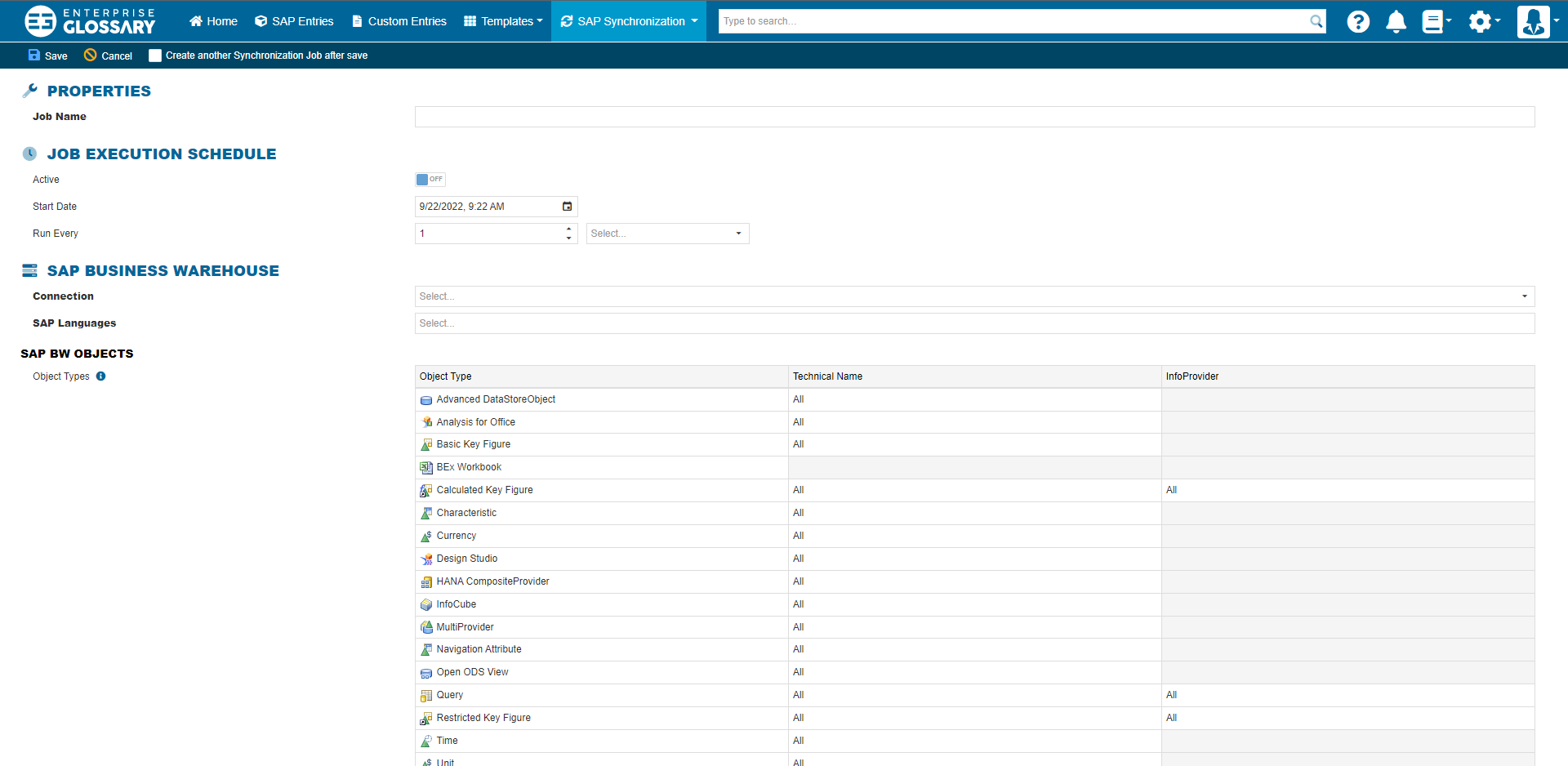
Under properties, the Synchronization Job can be named with a unique name.
Job Execution Schedule
Here, the automatic execution of the job can be activated. Date and time can be set for the first run as well as the interval of the executions.
SAP Business Warehouse
The connection used for the job and the languages, that should be synchronized have to be selected here. In the SAP BW Objects area, a namespace or InfoProvider can be selected for every object type.
SAP BO
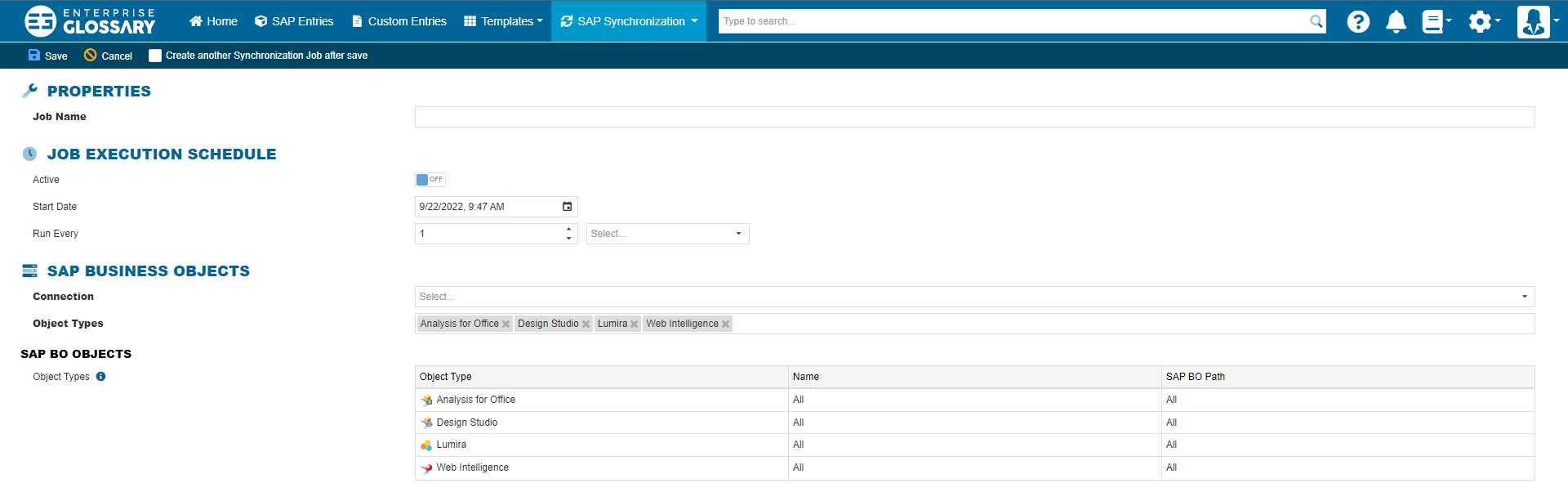
Properties
Under properties, the Synchronization Job can be named with a unique name.
Job Execution Schedule
Here, the automatic execution of the job can be activated. Date and time can be set for the first run as well as the interval of the executions.
SAP Business Objects
The connection used for the job and the object types, that should be synchronized have to be selected here. In the SAP BO Objects area, a namespace or SAP BO path can be selected for every object type.
SAC
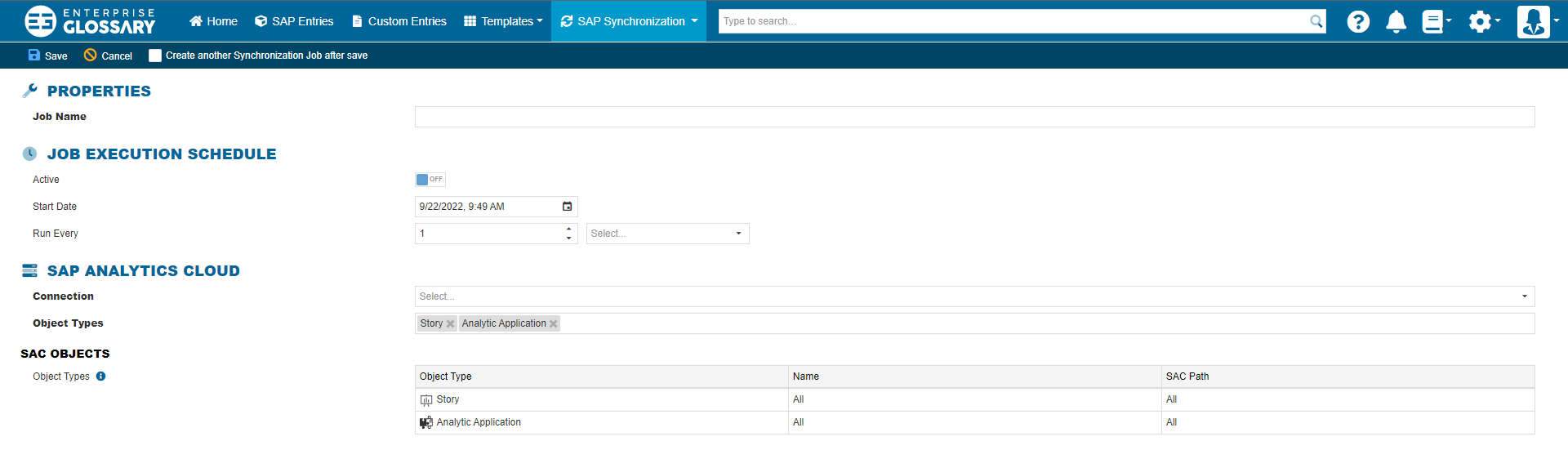
Properties
Under properties, the Synchronization Job can be named with a unique name.
Job Execution Schedule
Here, the automatic execution of the job can be activated. Date and time can be set for the first run as well as the interval of the executions.
SAP Analytics Cloud
The connection used for the job and the object types, that should be synchronized have to be selected here. In the SAC Objects area, a namespace or SAC path can be selected for every object type.
HANA
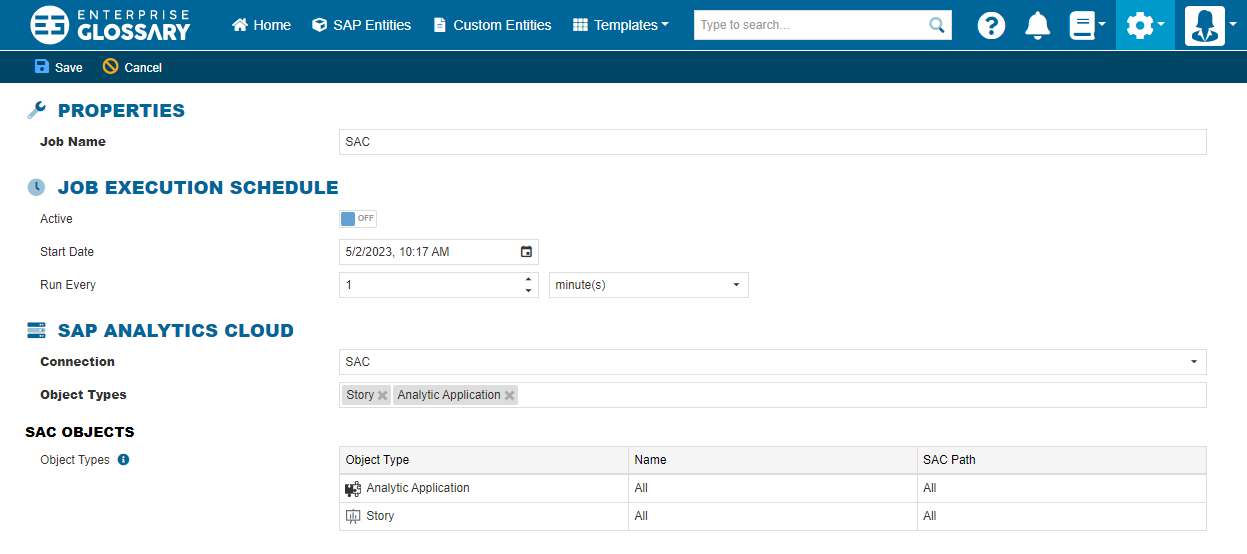
Properties
Under properties, the Synchronization Job can be named with a unique name.
Job Execution Schedule
Here, the automatic execution of the job can be activated. Date and time can be set for the first run as well as the interval of the executions.
SAP Analytics Cloud
The connection used for the job and the object types, that should be synchronized have to be selected here. In the HANA Objects area, blablabla.
Delete Synchronization Jobs
To delete a Synchronization Job, press the Delete button in the respective table column and confirm in the pop-up.

Start Synchronization Jobs manually
To start a Synchronization Job, press the Start button in the respective table column and confirm in the pop-up.
