
Update Synchronization Service
To update the Synchronization Service, stop the Enterprise Glossary Sync Service in the Windows Service overview. Now unzip the new files and copy them to the directory, where your service runs. If you get a message that there are files with the same name in the destination, click Replace files in destination. Finally, you can start the services again.
Update Enterprise Glossary
1. Start update
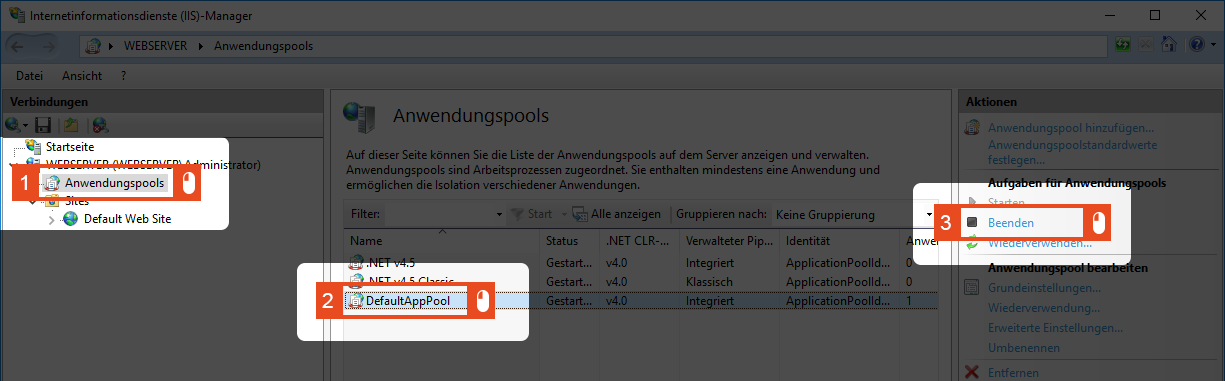
Before you start the update, you should terminate the application pool. To do this, start the Internet Information Services (IIS) Manager and click Application Pools > DefaultPool > Exit
If several websites/applications are used on the web server, it is recommended to create a separate application pool.
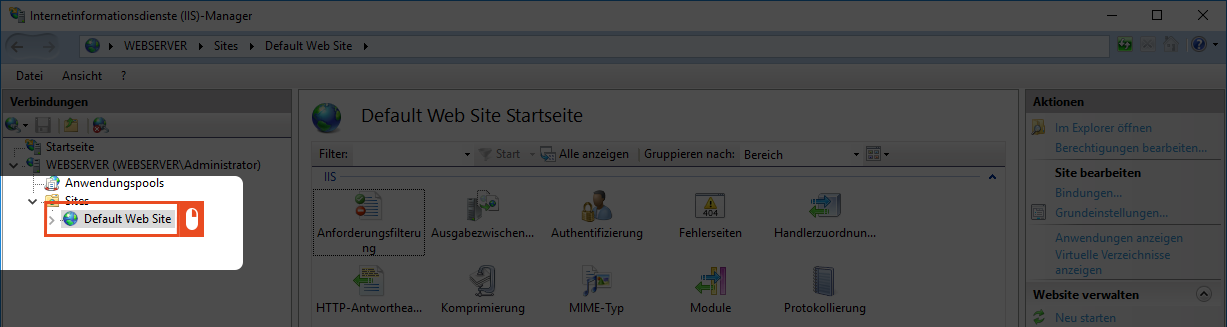
To update the Enterprise Glossary, do the following. Select the Default Web Site.
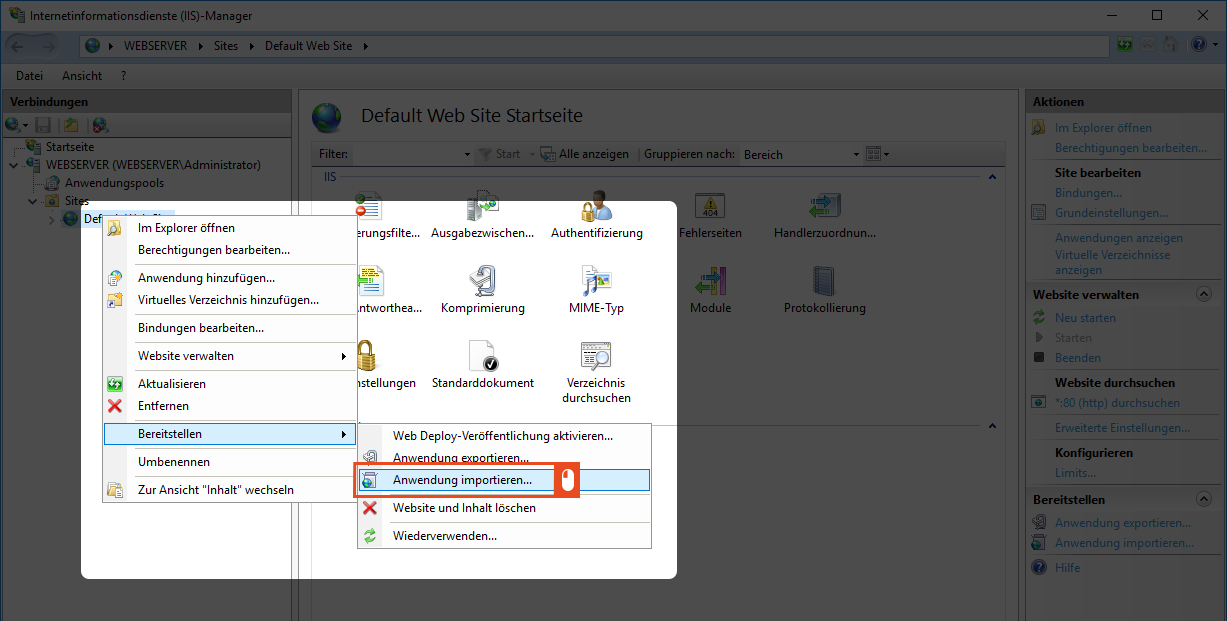
Right-clicking on the menu item will take you to the Deploy function. In the next step, select Import Application.
2. Select Zip-file
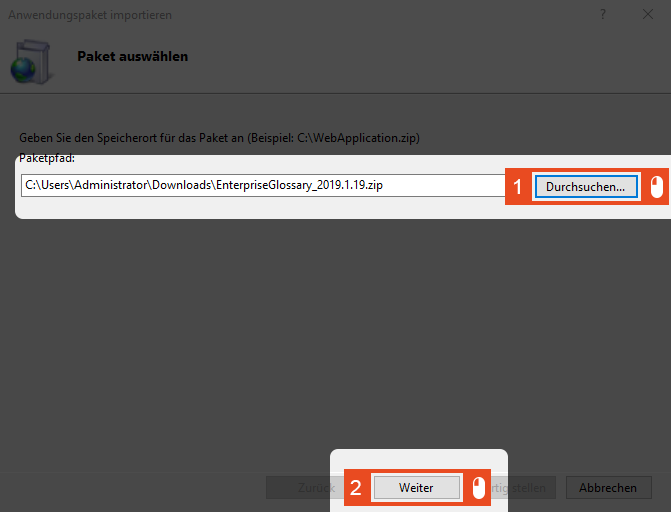
A new window opens where you can specify your package path to the zip file. Here, click Browse and select the corresponding zip file. After that, click Next.
3. Application path
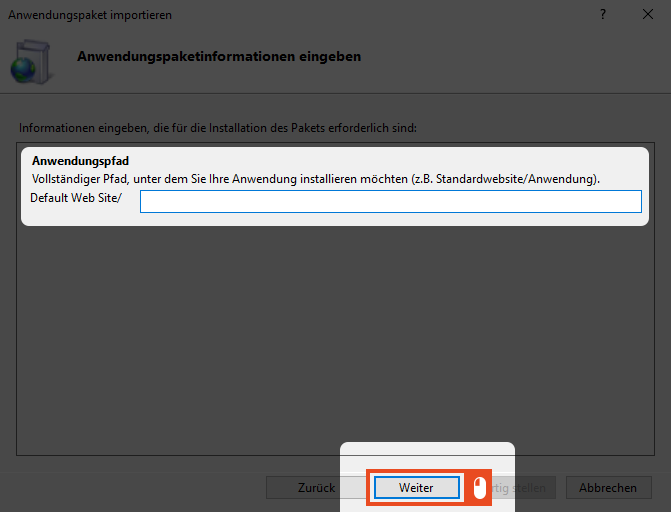
In the next step, you need to specify the same application path as during the installation and then confirm with Next.
(Here the Field should remain empty, if the application is called via the Default Web Site)
4. Overwriting existing Files
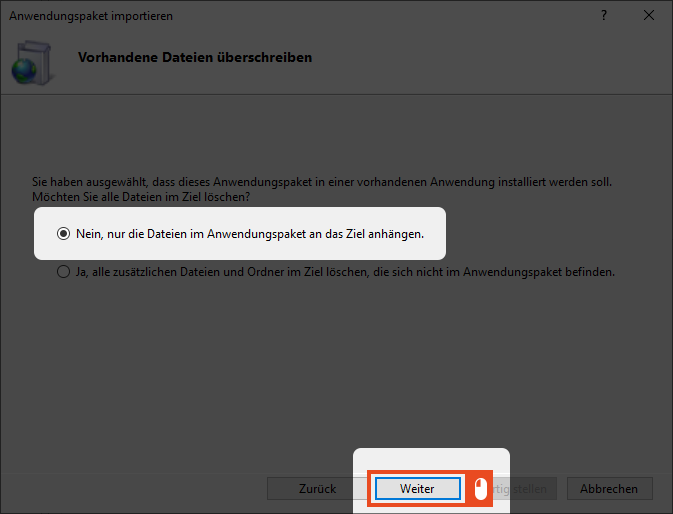
Before the required files are copied from the zip file to the destination directory, another notification is displayed.
To ensure that all your previously used configuration data is still available after the update, select the first setting.
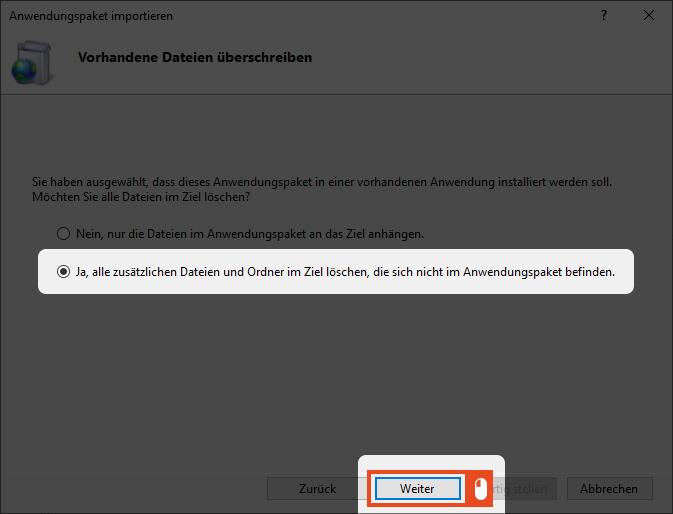
In the second setting, all files and folders that are not present in the zip file are deleted. This includes the database connection settings, all uploaded images and files.
If you call the Enterprise Glossary again afterwards, you have to go through the setup routine again. Your data in the database will still exist.
5. Update finished
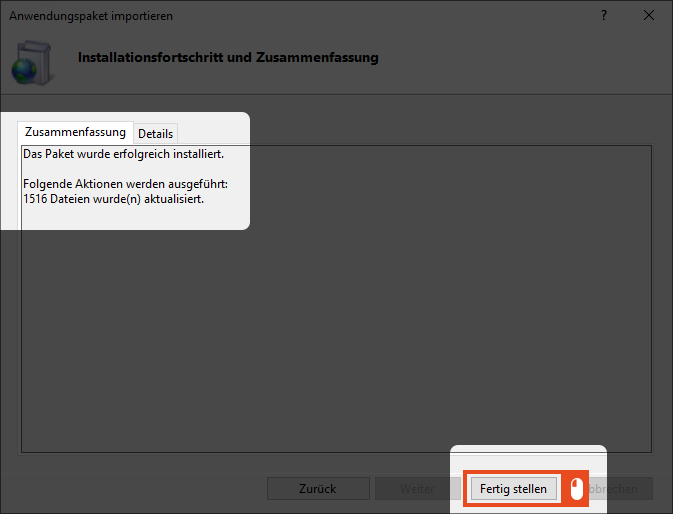
When all files have been copied successfully, you will see a Summary in a new window. To complete the update, click Finish.
5.1 Optional: Customize index file
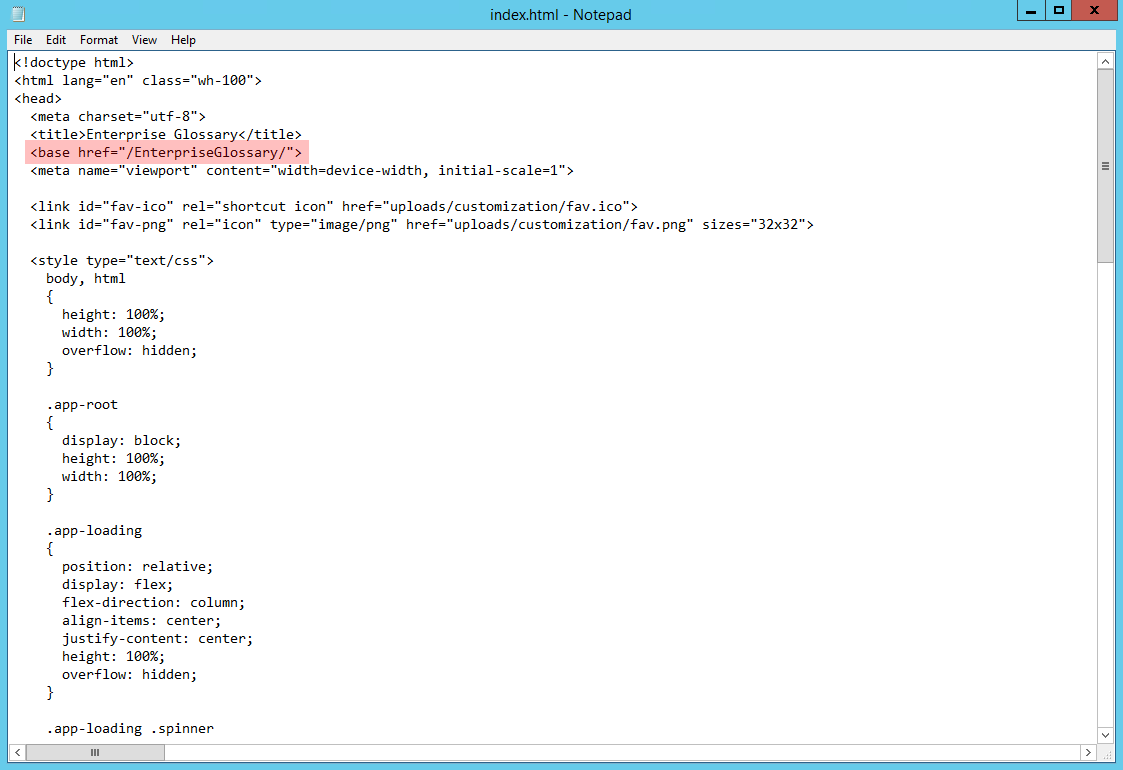
If you have adjusted the application path in the previous step (3), the index.html must be adjusted after completing the wizard.
The index.html is located under ClientApp\dist.
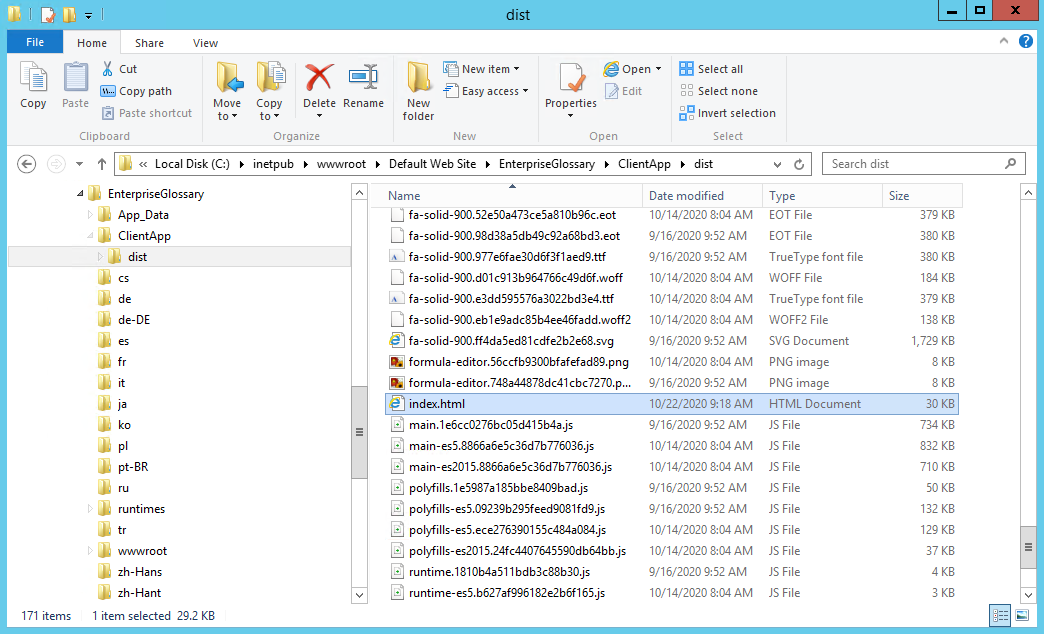
In the initial situation, the Index.html looks like this:
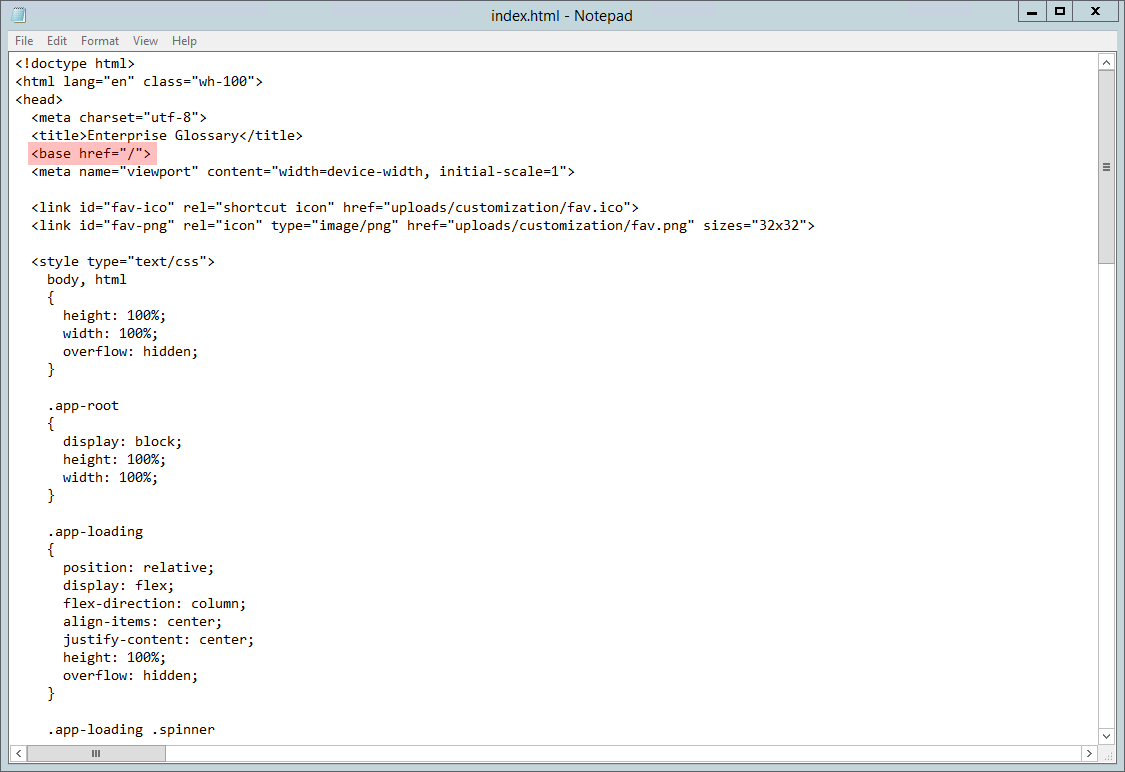
The <base href = "/"> must be changed to <base href = "/application path/">, for example, <base href = "/EnterpriseGlossary/"> if "EnterpriseGlossary" was selected as the application path.