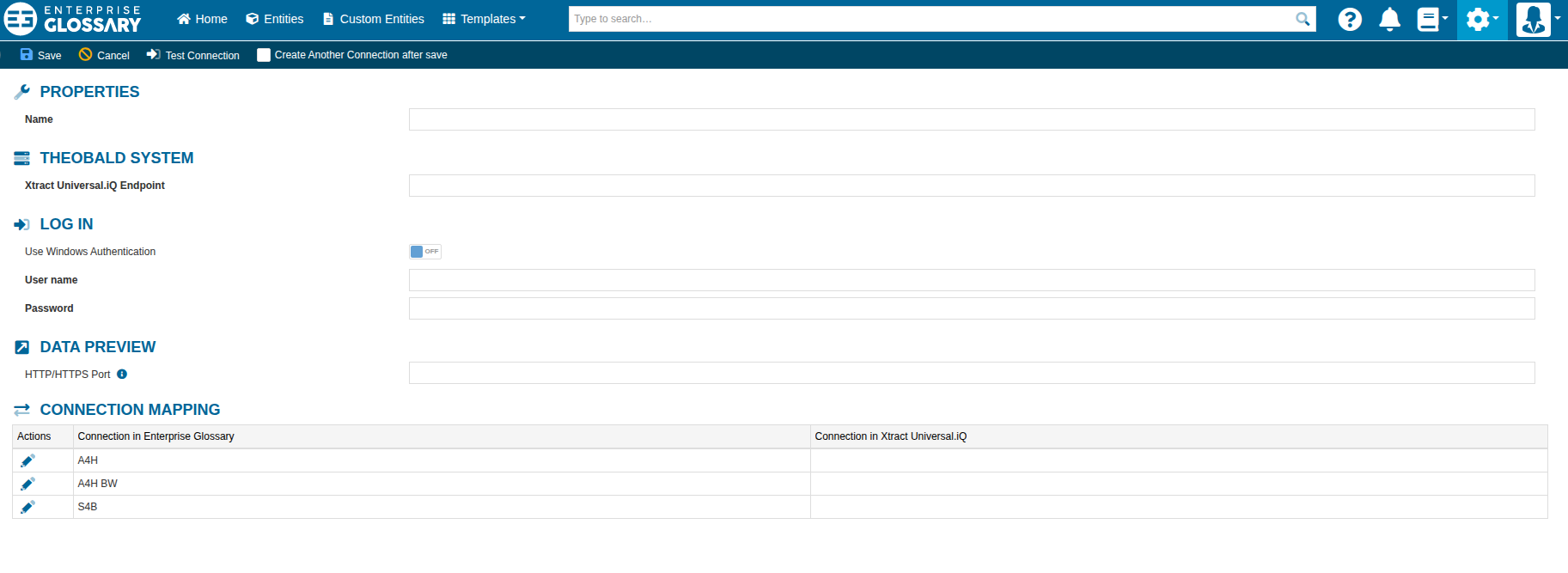

Connections to SAP systems, Theobald XU.iQ or Power BI can be maintained under Connections.
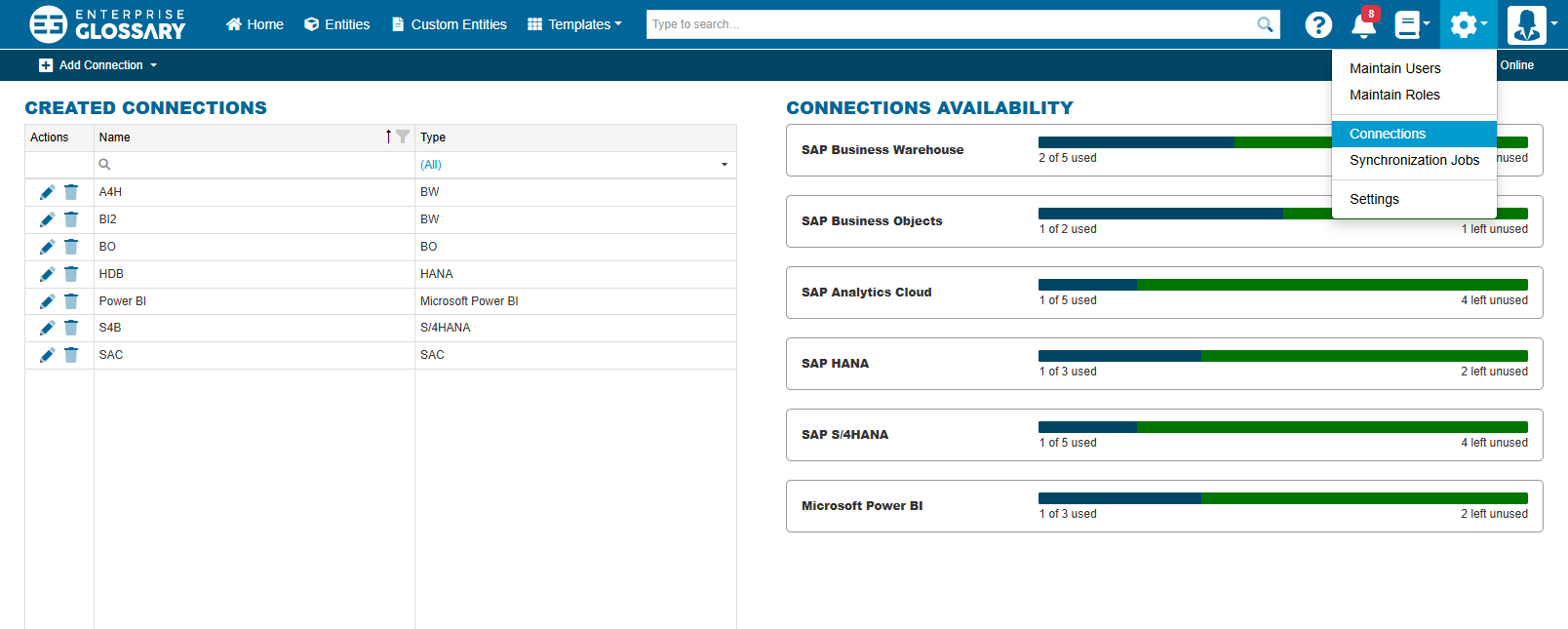
Maintaining Connections
Create
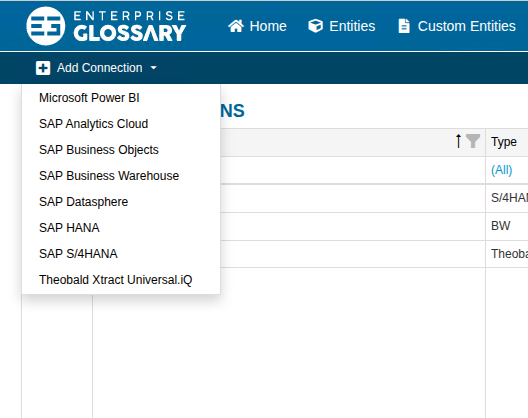
New connections can be added by clicking the Add Connection button in the Function Panel and then selecting the type of connection you want to add.
Edit
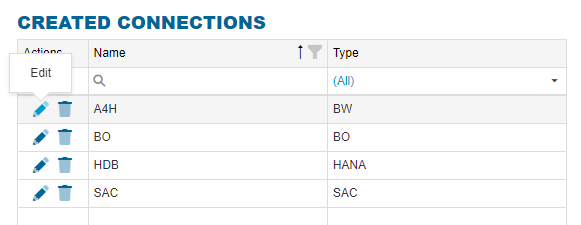
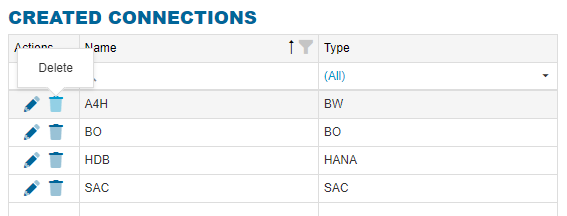
Existing connections can edited by pressing the Edit button in the Actions column.
Delete
Existing connections can be deleted by pressing the Delete button in the Actions column. This will also remove all related SAP Entities.
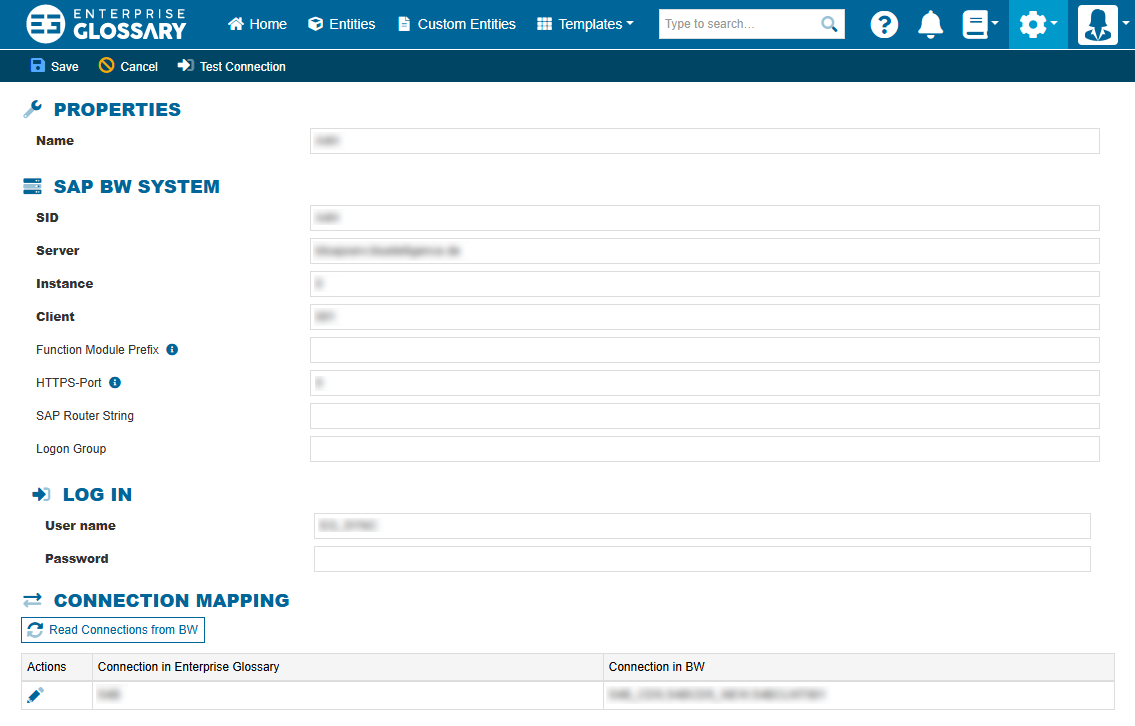
SAP Business Warehouse Connections
The following parameters need to be filled in:
-
The SID of your SAP BW system
-
The domain of your Server
-
Instance number
-
Client number
Optional parameters are:
-
Function Module Prefix of the function module RFC_GET_STRING
Since version 2023.2 of Enterprise Glossary, the Function Module is optional for certain versions of SAP BASIS, see here: Function module RFC_GET_STRING
-
HTTPS-Port is needed for the download of SAP BW Queries
-
SAP Router String
-
Logon Group and
-
is needed to get the data from SAP. Per default it is set to ¦. If you use that character in description in SAP, please change it.
Other than that, the connection has to have a Name, and to make the connection User name and Password have to be maintained.
At the end of the page the Connection Mapping can be maintained. For every added S/4HANA System the Logical System in the BW System can be maintained. That is needed to see the full Data Origin and the full Data Lineage.
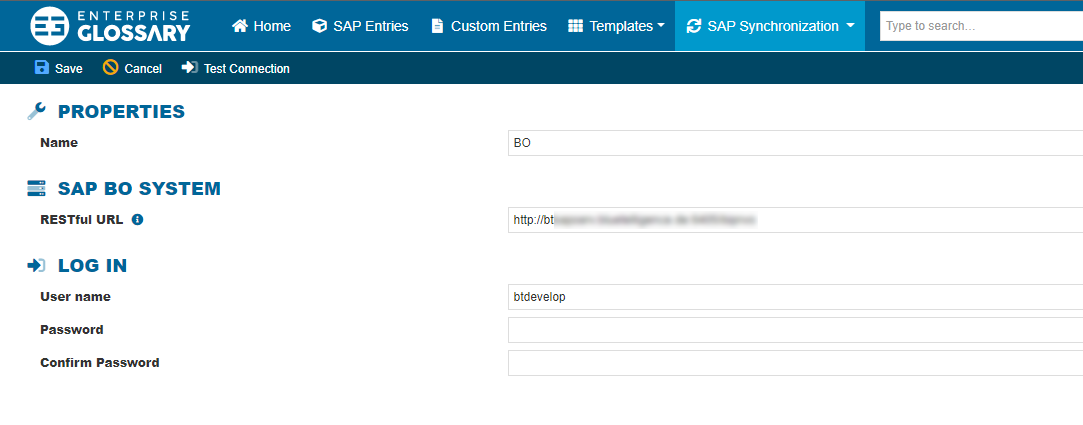
SAP Business Objects Connections
The following parameters need to be filled in:
-
Name
-
RESTful URL
-
Login with User and Password
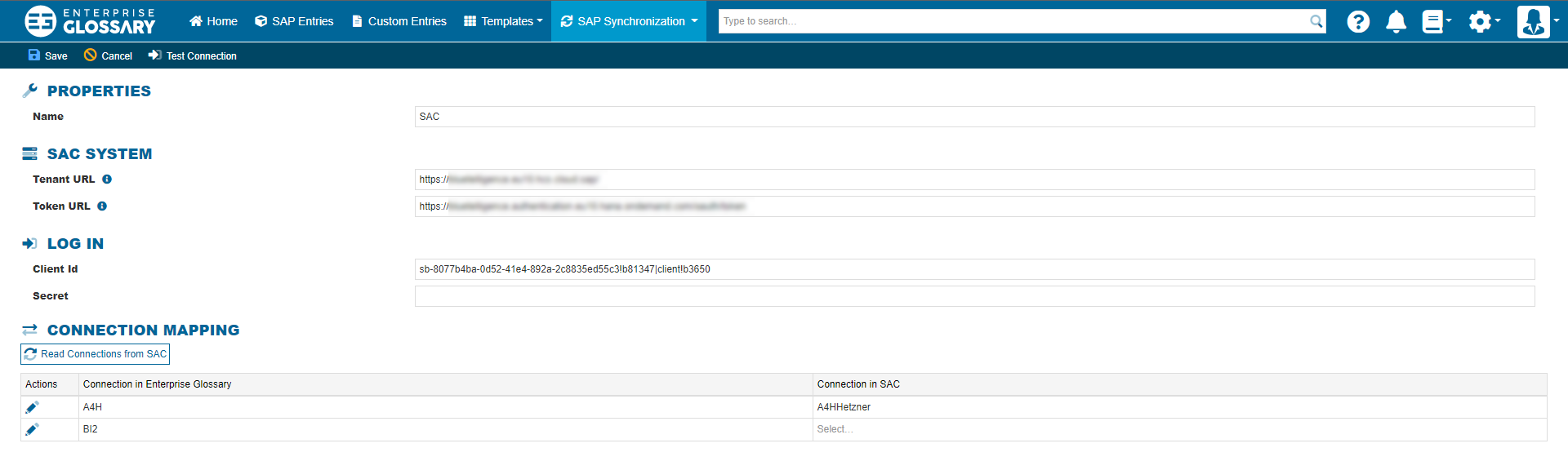
SAP Analytics Cloud Connections
The following parameters need to be filled in:
-
Name
-
Tenant URL
-
Token URL
-
Client ID and Secret for the login.
Additionally, the connection mapping to other systems can be read and maintained. This enables the where-used information between the SAC system and systems of other types.
SAP HANA Connections
The following parameters need to be filled in:
-
Name
-
Database
-
Server
-
SQL Port
-
SSL if required
-
Login with User and Password
Additionally, the connection mapping to other systems can be read and maintained. This enables the where-used information between the HANA system and systems of other types.
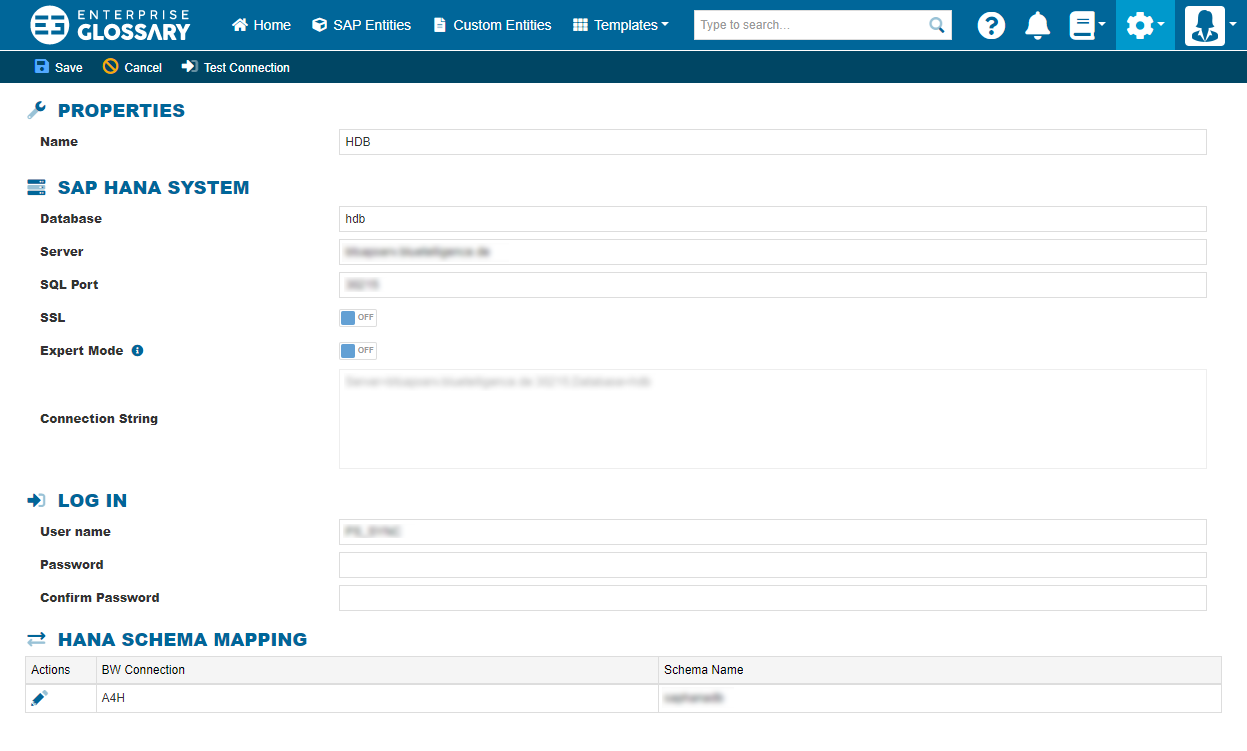
Expert mode: alternative for complex connection scenarios
In special cases, it is more complex to connect to your HANA databases because of the system architecture on your side (e.g. proxies or special ports).
In this case, you can use the 'Expert mode' and create your own connection string.
Please use the 'Expert mode' in consultation with your HANA IT administrators.
(In the connection string, the user and password information is not needed and will not be saved)
Every parameter you need can be found here.
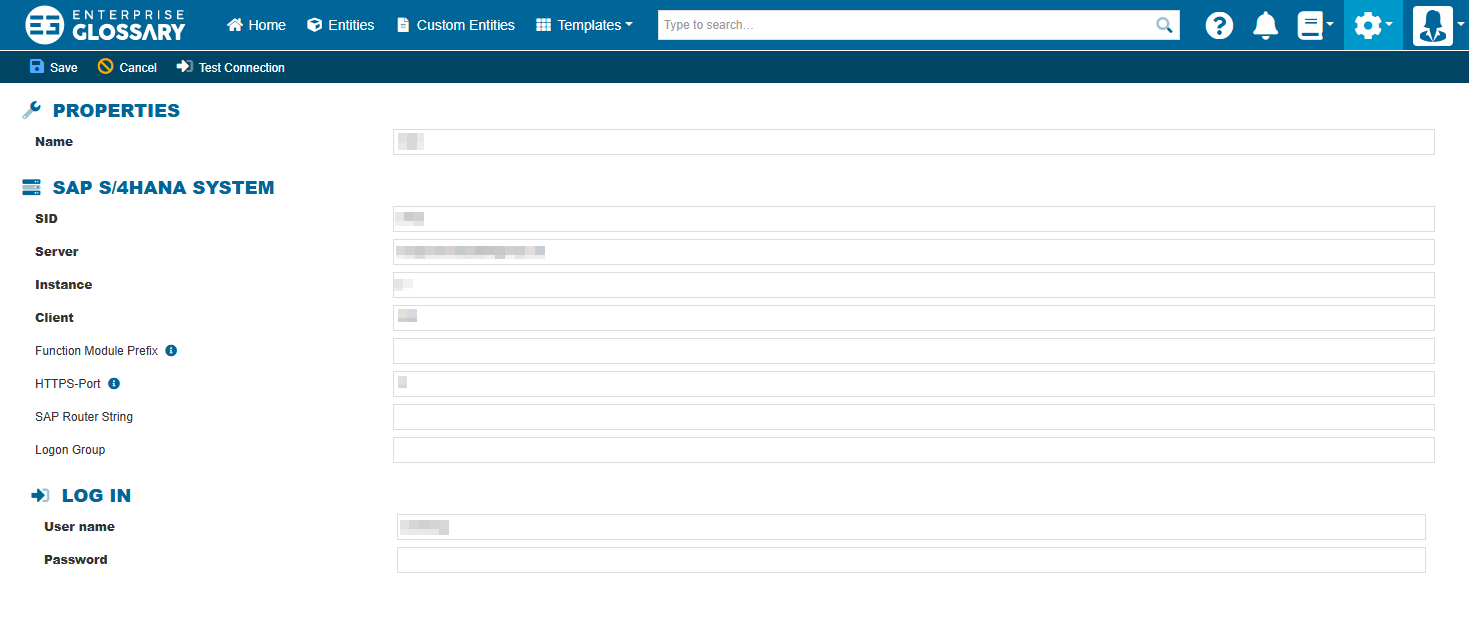
SAP S/4HANA Connections
The following parameters need to be filled in:
-
The SID of your SAP BW system
-
The domain of your Server
-
Instance number
-
Client number
Optional parameters are:
-
Function Module Prefix of the function module RFC_GET_STRING
Since version 2023.2 of Enterprise Glossary, the Function Module is optional for certain versions of SAP BASIS, see here: Function module RFC_GET_STRING
-
HTTPS-Port is needed for the download of SAP BW Queries
-
SAP Router String
-
Logon Group and
-
Delimiter is needed to get the data from SAP. Per default it is set to ¦. If you use that character in description in SAP, please change it.
Other than that, the connection has to have a Name, and to make the connection User name and Password have to be maintained.
MS Power BI Connections
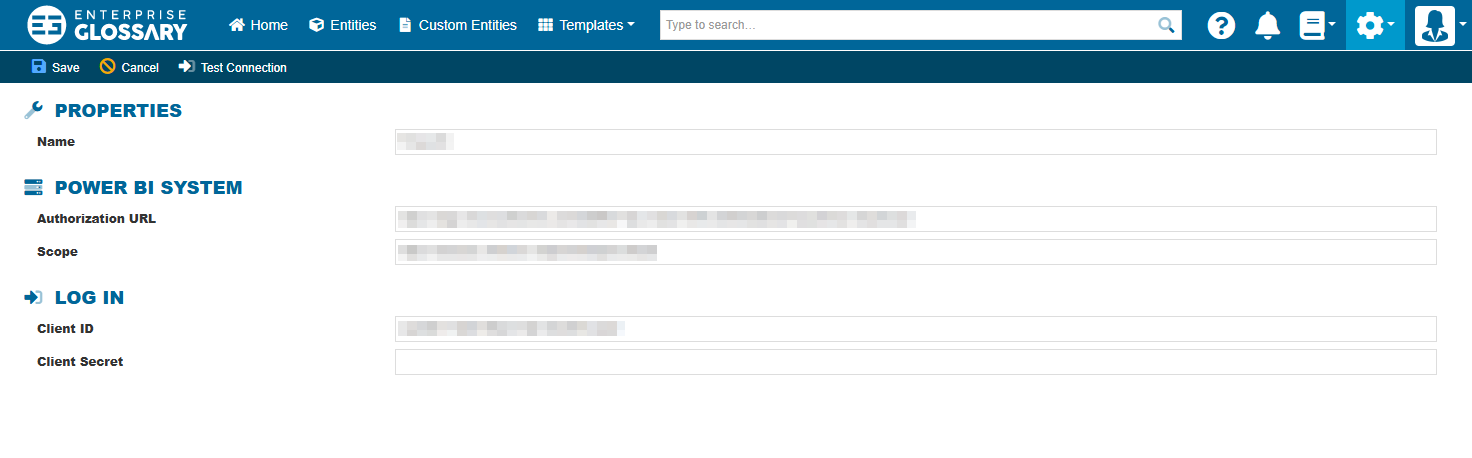
It is more complex to set up every connection parameters for Power BI. Everything what had to be done is described here.
The following parameters need to be filled in:
-
Authorization URL per default https://login.microsoftonline.com/<Directory (tenant) ID>/oauth2/v2.0/authorize
how to get the Tenant ID here
-
Scope the default Scope is https://analysis.windows.net/powerbi/api/.default
-
Client ID
-
Client Secret
Theobald Xtract Universal.iQ
To connect with a running Theobald Xtract Universal.iQ instance fill in the following parameters:
Properties
-
Name — a unique display name for this connection within Enterprise Glossary.
Theobald System
-
Xtract Universal.iQ Endpoint — the base URL of your Xtract Universal.iQ instance, including protocol and port. The Ports needs to be the API Port, defined by Xtract Universal.iQ. Most likely this is port 8075.
-
Example:
http://192.12.XXX.XXX:8075/
Container installations: If Enterprise Glossary is running inside a container, localhost or 127.0.0.1 cannot be used as the endpoint address, even if XIQ runs on the same host machine. Use the host machine's actual IP address instead.
Log In
-
User name — the username configured in Xtract Universal.iQ for API access.
-
Password — the corresponding password.
-
Use Windows Authentication — Activating the toggle switch allows authentication via Active Directory (AD) without storing credentials explicitly if Xtract Universal.iQ and the Enterprise Glossary run on the same Windows host.
Support for Microsoft Entra ID authentication s planned for a future release
Data Preview
The HTTP/HTTPS port is required to navigate to the Xtract Universal.iQ service endpoint. Please set the Port which is used for the UI in Xtract Universal.iQ. Most likely this is port 8077.
Connection Mapping
For each connection listed in the Connection in Enterprise Glossary column, the matching Connection in Xtract Universal.iQ can be entered.