

Custom entities are manually created entries that can represent a number of different things. They can be used to include technical objects that are not covered by the automated synchronization service. In other use cases, custom entities can be used for requirements for technical objects to be implemented, instructions or guides for users, general definitions of business terms, and much more. The flexible approach allows for many different use cases.
Create
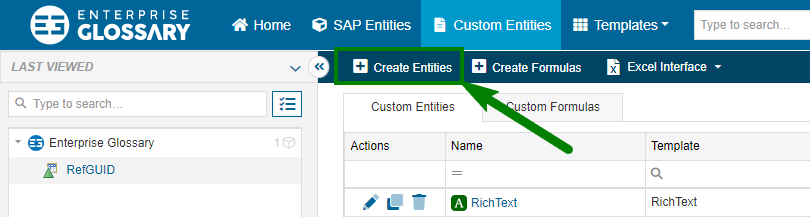
New Custom Entities can be created in two different ways:
-
Custom Entities > Create Entities
-
Context menu in the directory > Add to Folder > New Entity
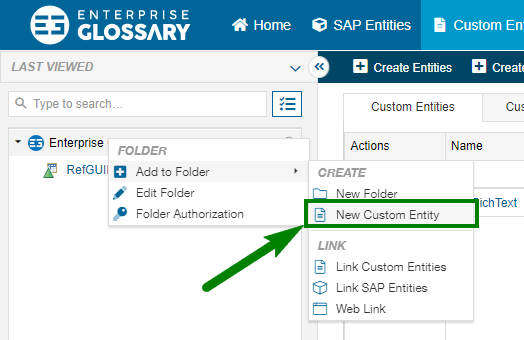
A Custom Template must be present before a Custom Entity can be created.
Custom entities can be easily generated by importing data from an Excel file through the Excel Interface.
Delete
The deletion of Custom Entities can be done in three ways:
-
Custom Entities > Delete button in the first column “Actions”
-
Open a Custom Entity > “Delete” button in the toolbar
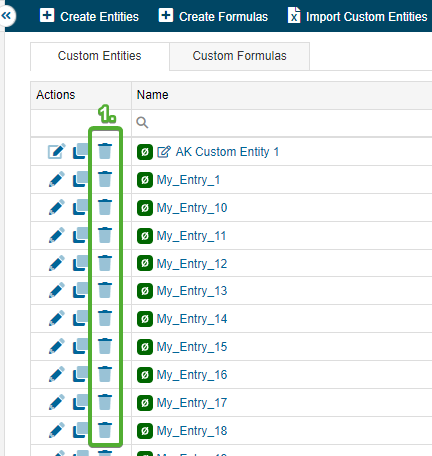
If a draft of the entity exists, this button will delete the draft, not the entity.
Edit
If you create new Custom Entities you can…
-
Define a name for the Entity and select a Custom Template
-
Activate the Attachments & Linked Entities (see further below in this article)
-
Insert content into the available custom fields
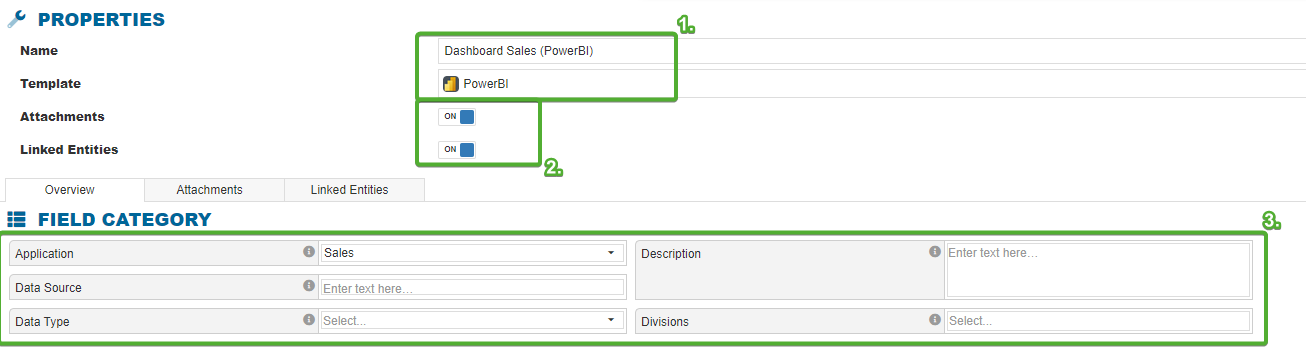
The Entity Editor also can be opened for existing Custom or SAP Entities by clicking the Edit button in the entities toolbar. If the template contains custom fields, their content can be edited:
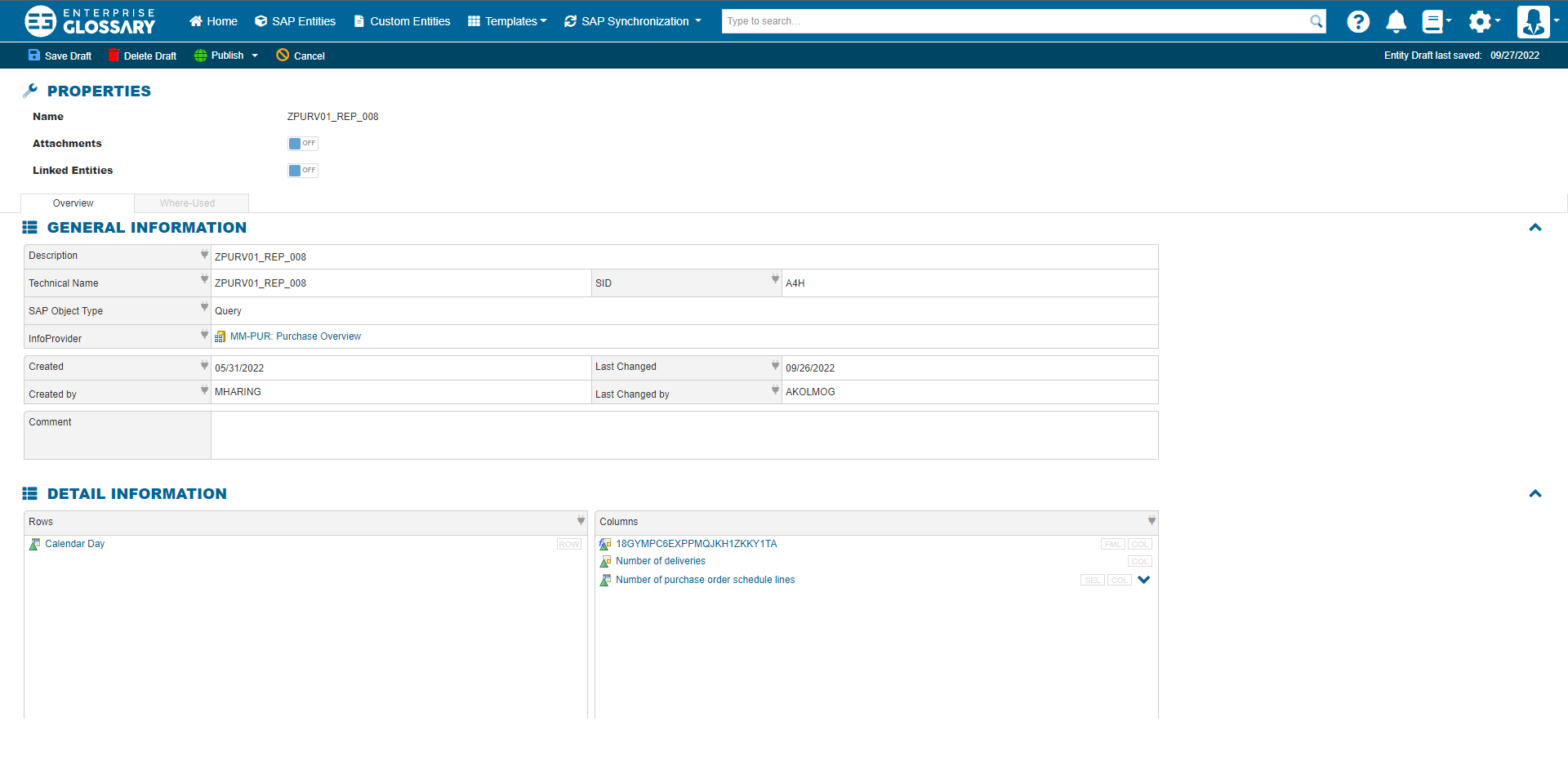
SAP fields of an SAP Entity are filled automatically and cannot be overwritten with manual content!
Custom entities can be effortlessly modified by importing data from an Excel file using the Excel Interface.
Publish, Save & Delete Draft
In the toolbar of the entity editor, you can…
-
Publish the entity, which will make your changes visible for everyone authorized to read the entity, and discard your changes with cancel.
When publishing the entity, you can also create a shortcut, that will make the entity appear in the sidepanel.
-
Save Draft, which will save your changes without publishing them for everyone,
-
Delete Draft to discard all unpublished changes