

The sidepanel offers the user the possibility to display and structure the entities in folders in a Directory. This allows to group related objects or objects of different departments and to access important or often used objects faster. For synchronized SAP BW systems the InfoAreas and their contained Entities are displayed in the Sidepanel. On top of the Sidepanel a list of the five last viewed objects is displayed.
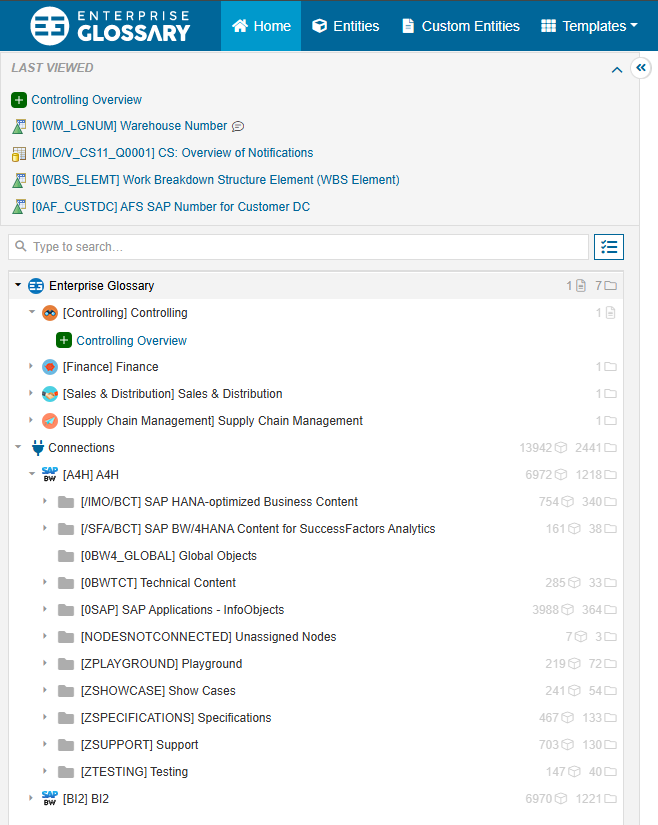
Directory
The directory allows the manual creation of folders, links to Custom and synchronized Entities in said folders as well as links to webistes. The directory can be used to create a Custom folder structure with custom links to content inside and outside of Enterprise Glossary. The root node of the Directory is a folder called “Enterprise Glossary” by default.
Interactions
Folder
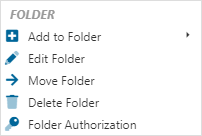
Add to Folder
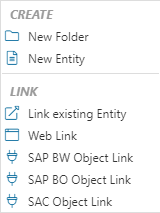
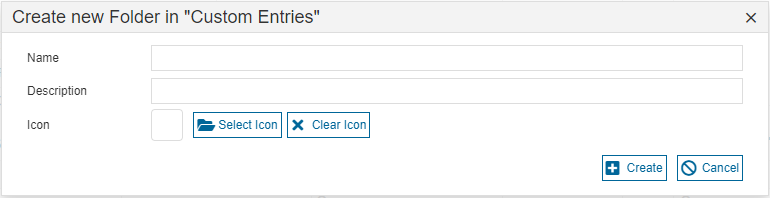
It is possible to create a new folder or a new custom entity in the existing folder. When creating a new folder, it is possible to give it a name, a description and an icon.
It is also possible to link an existing custom entity or an SAP entity. One or more entities can be selected out of a list at once.
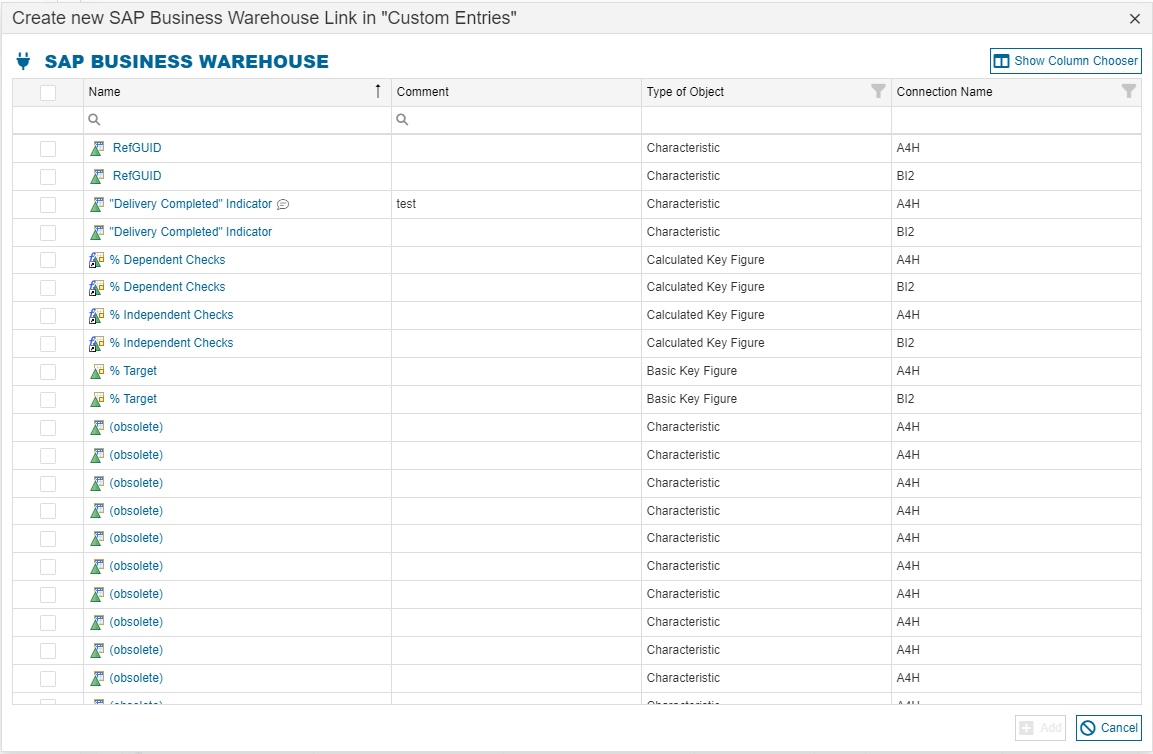
It is also possible to assign an entity to a folder when publishing it.
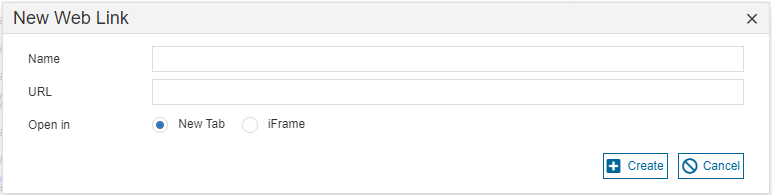
A website can also be linked in the folder. The link can be opened in a new tab or an iFrame in the Enterprise Glossary.
Edit Folder
When editing a folder, the folder can be renamed, the description and the icon can be changed.
Move Folder
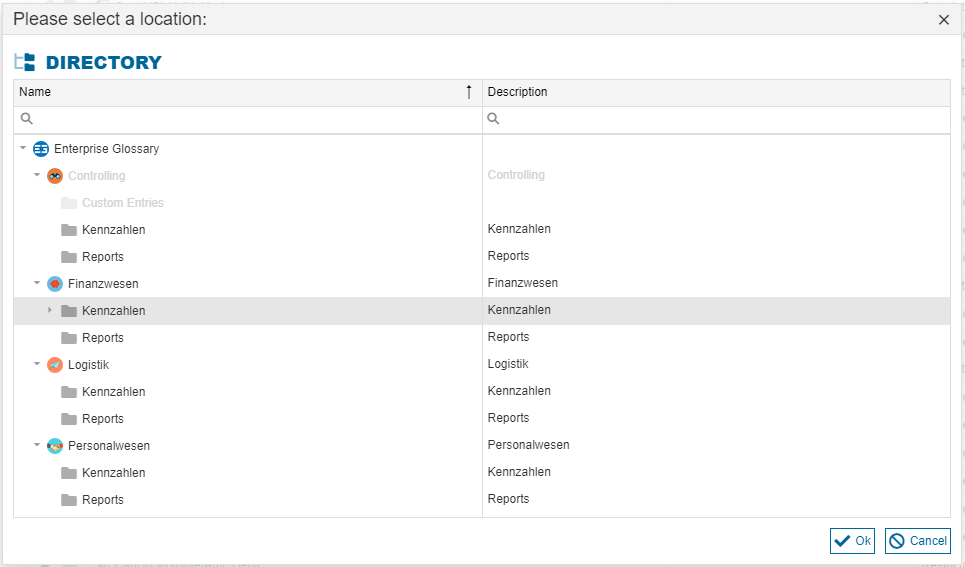
The folder can be moved to a new location. The new location can be selected in the pop-up
Delete Folder
The folder can be deleted. When the folder is deleted, the entities in the folder will still exist in the Enterprise Glossary, but the link to them in the sidebar will be removed.
Folder Authorizations
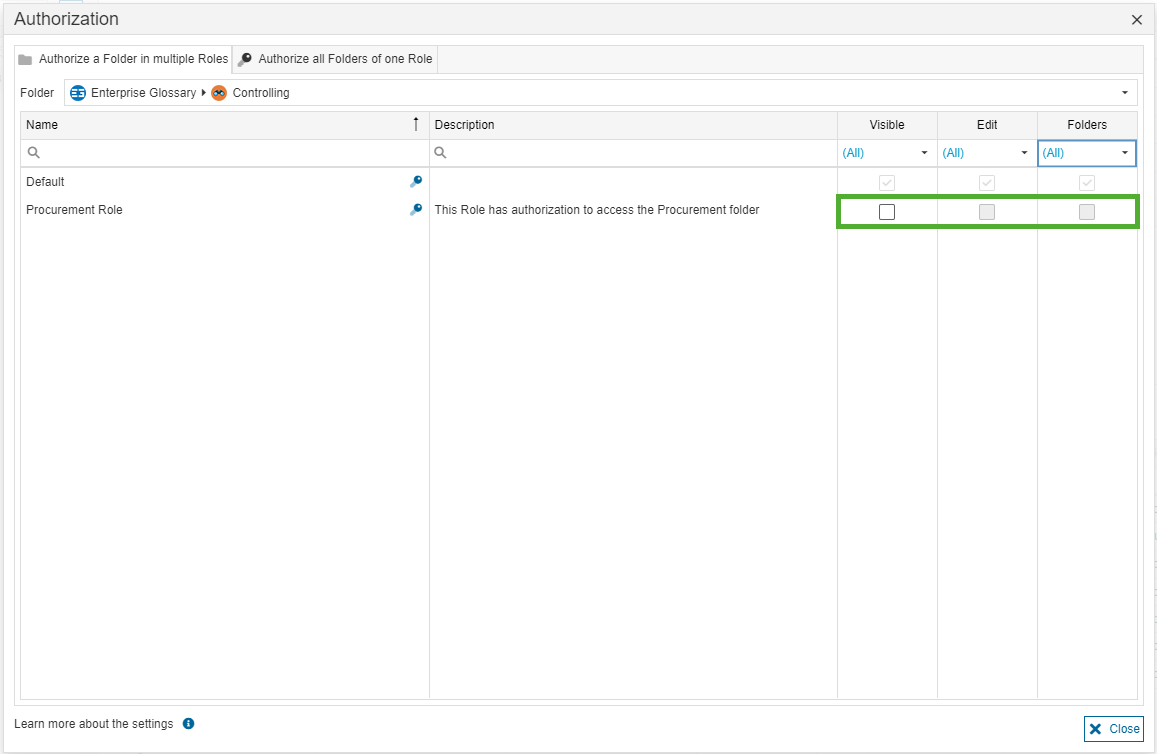
You can authorize a role to access the folder. In the appearing pop-up, you can authorize the roles to see or edit the folders or revoke the authorization.
Entities
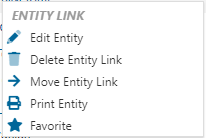
For entities, it is possible to edit, delete, move or print them or add them to your favorites.
Select multiple elements
It is possible to select multiple items in the directory by clicking the button next to the search bar. This allows you to select multiple items via a checkbox. The context menu will then offer options to move or delete the selected items.
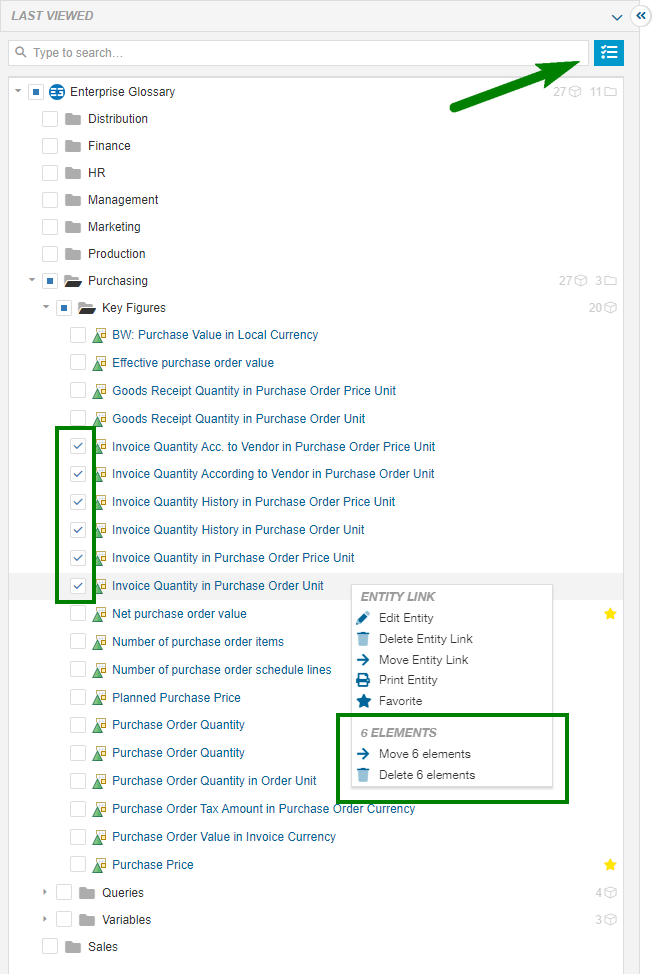
Connections in the Sidepanel
Underneath a node called “Connections” the synchronized SAP Busniess Warehouse systems are avaialble to brwose their InfoAreas and supported Entities. Like for the Directory the visibility of the connection node, systems and InfoAreascan be controlled per role via the role authorization.